Places Management Dashboard
Overview
The Places Management Dashboard is a modern web-based interface that provides you with complete control over your store locations (referred to as "places" in the system). This intuitive dashboard allows you to view, search, and manage all your stores from a single, centralized location. The dashboard features real-time statistics showing you at a glance how many stores are active, how many are currently accepting orders, and any data quality issues that may need attention. With its responsive design, you can access and manage your stores from any device—whether you're at your desk or on the go.
Getting Started
Accessing the Dashboard
- Navigate to the dashboard URL at
https://dashboard.[your instance url] - You'll be prompted to log in with your API key. If you don't have an API key, please contact your Naveo administrator to create one for you.
- Enter your API key and click "Sign In"
- Once authenticated, you'll be taken to the dashboard home page
Dashboard Home
The home page provides an at-a-glance view of your store network:
- Total Places: The total number of stores in your system
- Active Places: How many stores are currently active
- Accepting Orders: How many stores are actively taking orders
- Issues Found: Any data quality issues that need attention
Quick action cards allow you to navigate directly to key features like Places management, Import, Analytics, and Issues.
Understanding Store Status: Active vs Ordering
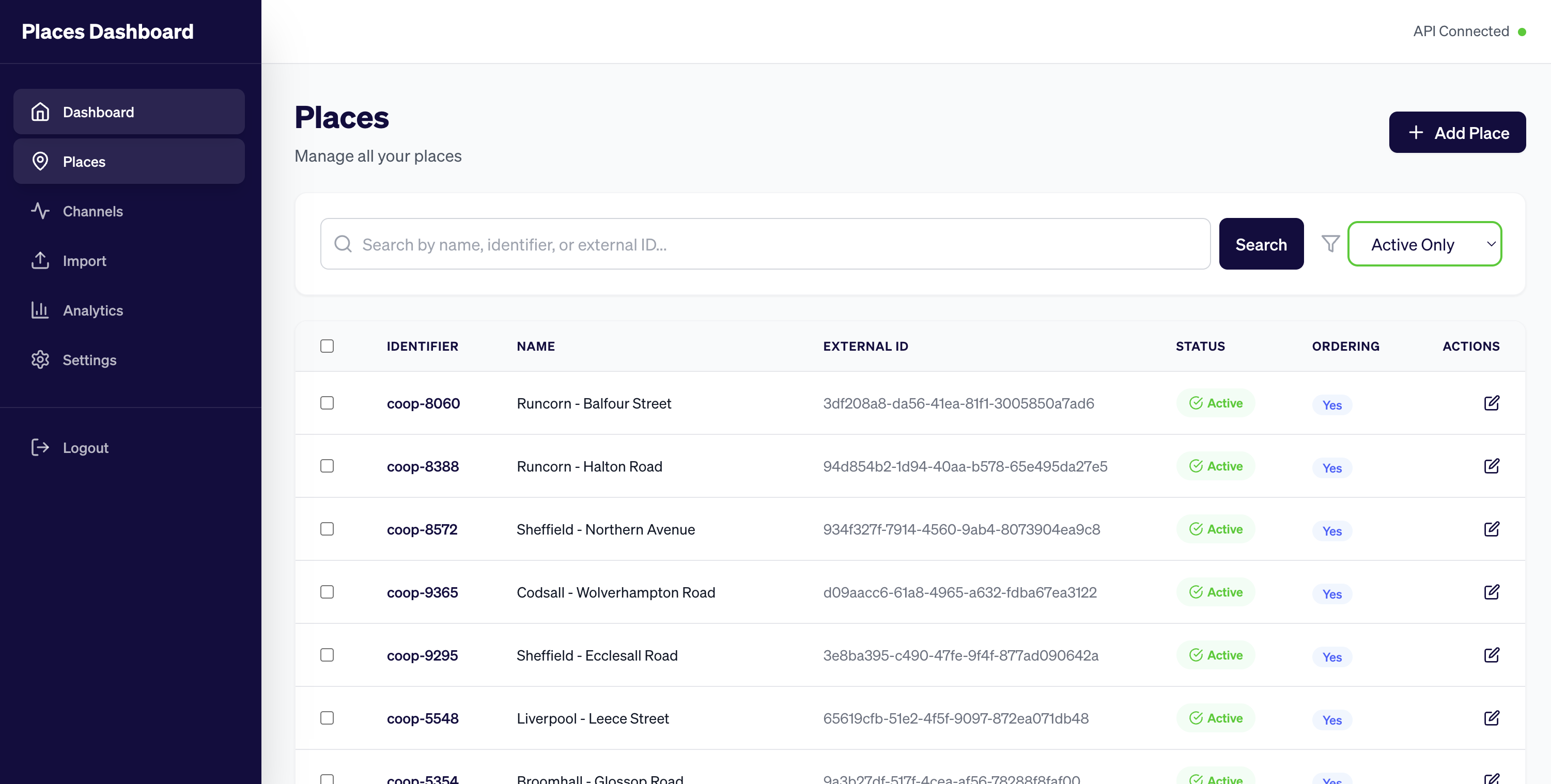 The Places Dashboard showing both the Status (Active) and Ordering columns
For a store to receive orders, it must have both statuses enabled:
| Status | Purpose | Description |
|---|---|---|
| Active | Long-term availability | Indicates whether the store is operational in the system. Deactivating a store is typically used for permanent closures, major renovations, or removing a location from service entirely. |
| Ordering | Short-term availability | Controls whether the store is currently accepting orders. This can be toggled on/off quickly without affecting the store's overall active status. |
Why Two Statuses?
This two-tier approach provides flexibility and security:
Operational Control: A store can remain "Active" (in the system and operational) but have "Ordering" turned off during:
- Peak busy periods when the store is at capacity
- Temporary closures (staff shortages, equipment issues)
- Scheduled maintenance windows
- Special events or holidays
Quick Response: The "Ordering" toggle allows rapid response to changing conditions without affecting the store's fundamental status in the system.
Security Layer: Separating these concerns means accidental changes are less likely to have unintended consequences. A store won't suddenly start receiving orders just because it's marked as Active.
Important: A store will only receive orders when both
Active = trueANDOrdering = true. If either status is disabled, the store will not accept new orders.
Managing Store Activation and Deactivation
Viewing Your Stores
To view and manage your stores, navigate to the Places section from the sidebar menu. Here you'll see a complete list of all your stores with the following information:
- Store name
- Identifier
- External ID
- Active status
- Ordering status
- Channel assignment
Searching and Filtering
The dashboard provides powerful search and filter capabilities:
- Search: Use the search bar to find specific stores by name, identifier, or external ID
- Filter by Status: Use the filter dropdown to view:
- All stores
- Active stores only
- Inactive stores only
Activating Stores
To activate one or more stores:
- Navigate to the Places section
- Use search or filters to find the stores you want to activate
- Select the checkboxes next to the stores you want to activate
- You can select multiple stores at once
- Use "Select All" to select all stores on the current page
- Click the "Activate" button at the top of the list
- The system will process your request and display a success notification
- The store status will update immediately in the list
Remember: Activating a store sets its
Activestatus to true. For the store to receive orders, you must also ensure theOrderingstatus is enabled. Check both columns in the store list to confirm.
When to Activate Stores:
- When a new store is ready to start accepting orders
- After maintenance or temporary closure is complete
- When seasonal locations reopen
- After resolving technical or operational issues
Deactivating Stores
To deactivate one or more stores:
- Navigate to the Places section
- Use search or filters to find the stores you want to deactivate
- Select the checkboxes next to the stores you want to deactivate
- You can select multiple stores at once
- Use "Select All" to select all stores on the current page
- Click the "Deactivate" button at the top of the list
- The system will process your request and display a success notification
- The store status will update immediately in the list
When to Deactivate Stores:
- During scheduled maintenance
- For temporary closures (holidays, emergencies)
- When a store is permanently closing
- To prevent orders during system updates
- When addressing operational issues
Managing Ordering Status
The Ordering status provides a quick way to control whether a store accepts orders without changing its overall Active status.
To enable or disable ordering for stores:
- Navigate to the Places section
- Find the store(s) you want to modify
- Select the checkboxes next to the relevant stores
- Click "Enable Ordering" or "Disable Ordering" as needed
- The ordering status will update immediately
When to Disable Ordering (while keeping store Active):
- During peak busy periods when the store is at capacity
- Staff shortages or unexpected absences
- Equipment issues or temporary operational problems
- Short-term closures (a few hours or a day)
- Testing or troubleshooting order flow
When to Re-enable Ordering:
- When capacity returns to normal
- After resolving temporary issues
- When the store is ready to accept orders again
Tip: Use the Ordering toggle for temporary situations. For longer-term changes (weeks or permanent), consider deactivating the store entirely.
Bulk Operations
The dashboard's bulk operation feature is particularly powerful for managing multiple stores simultaneously:
- Select Multiple Stores: Check the boxes next to each store you want to modify
- Select All: Use the "Select All" checkbox to select all stores on the current page
- Process in Background: Bulk operations are queued and processed automatically
- Real-time Feedback: You'll receive notifications as operations complete
Best Practices for Bulk Operations:
- Use filters to narrow down your selection before bulk operations
- Verify your selection before clicking Activate or Deactivate
- Monitor the notifications to confirm all operations completed successfully
- Use the export feature to keep a record before making bulk changes
Additional Features
Analytics
The Analytics section provides valuable insights into your store network:
Overview Tab:
- Summary statistics
- Status distribution charts
- Ordering status breakdown
- Visual representation of your store portfolio
Issues Tab:
- Data quality issues categorized by severity (critical, warning, info)
- Detailed issue descriptions
- Helps you identify and resolve problems proactively
Import and Export
Exporting Store Data
To export your store list:
- Navigate to the Places section
- Click the "Export" button
- A CSV file will download automatically with all store information
Use exports for:
- Backup and record-keeping
- Reporting and analysis
- Sharing data with other systems
- Audit trails
Importing Store Data
To bulk-import or update stores:
- Navigate to the Import section
- Download the CSV template to see the required format
- Prepare your CSV file with store data
- Drag and drop the file or click to upload
- Monitor the progress bar as the import processes
- Review the results showing successful and failed imports
- Check error details for any failed imports
The import feature is ideal for:
- Initial setup with many stores
- Bulk updates to store information
- Migrating data from other systems
- Regular data synchronization
Settings
The Settings section displays:
- API connection status
- System configuration
- Feature flags
- System limits and cache settings
- Version information
Tips for Effective Store Management
- Regular Monitoring: Check the dashboard home page regularly for issues and statistics
- Use Filters: Leverage search and filter features to quickly find specific stores
- Bulk Operations: When managing multiple stores, use bulk operations to save time
- Export Before Changes: Export your data before making significant bulk changes
- Review Analytics: Use the analytics section to understand trends and identify issues
- Address Issues Promptly: Check the issues tab regularly and resolve problems quickly
- Keep Records: Export data periodically for backup and compliance purposes
Troubleshooting
Cannot Log In
- Verify your API key is correct
- Ensure the API server is running
- Check that your API key has the necessary permissions (read and write scopes)
Stores Not Updating
- Refresh the page to see the latest data
- Check your internet connection
- Verify the API server is accessible
- Review any error notifications displayed
Bulk Operations Not Working
- Ensure you have selected at least one store
- Verify you have the necessary permissions
- Check for any error messages in the notifications
- Try processing smaller batches if dealing with many stores
Support
For additional help or questions about the dashboard:
- Review the dashboard's built-in help and tooltips
- Check the API documentation for technical details
- Contact your system administrator or support team
- Review the Settings page for system status information
The Places Management Dashboard puts complete control of your store network at your fingertips, making it easy to manage availability, monitor performance, and maintain data quality across all your locations.